


Close Menu

    Subscribe to Updates

    Get the latest creative news from FooBar about art, design and business.

    What's Hot

    As David Barrick Takes the Helm in Whitehorse, a Close Examination of His Record Tells a Reassuring Story

    October 20, 2026

    Landmark Cinemas Bolton Upgrades to Laser Ultra Ahead of Holiday Movie Season

    October 17, 2026

    CAA Urges Ontario Drivers to Slow Down and Move Over as Roadside Safety Law Expands in 2027

    October 17, 2026
    Facebook X (Twitter) Instagram
    Vaughan TodayVaughan Today
    • Home
    • Top News
    • World
    • Banking
    • Explore Canada
    • How to
    • Solutions
    • Contact Us
    • Editorial Policy
    Vaughan TodayVaughan Today
    Home»Top News»How to Cancel e transfer RBC: Step by Step guide
    Top News

    How to Cancel e transfer RBC: Step by Step guide

    Evan McKenzieBy Evan McKenzieMay 2, 2023No Comments3 Mins Read
    Facebook Twitter Pinterest LinkedIn Tumblr Email
    How to Cancel e transfer RBC: Step by Step guide
    Share
    Facebook Twitter LinkedIn Pinterest Email Copy Link

    In today’s fast-paced world, electronic fund transfers have become an essential method for conducting transactions. The Royal Bank of Canada (RBC) offers its customers a convenient way to transfer money through e-Transfers. However, there might be instances where you need to cancel an e-Transfer after initiating it. This article will provide you with a detailed, step-by-step guide on how to cancel an e-Transfer with RBC.

    What is an e-Transfer?

    An e-Transfer is a secure, quick, and convenient way to send, request, or receive money from one bank account to another within Canada. The transaction is usually processed within a few minutes, and the recipient can deposit the funds directly into their bank account.

    Reasons for Cancelling an e-Transfer

    There could be multiple reasons why you might need to cancel an e-Transfer, such as:

    1. Sending the funds to the wrong recipient
    2. Entering the incorrect amount
    3. Duplicate transactions
    4. The recipient is unable to accept the transfer

    Step-by-Step Guide on how to cancel e transfer rbc
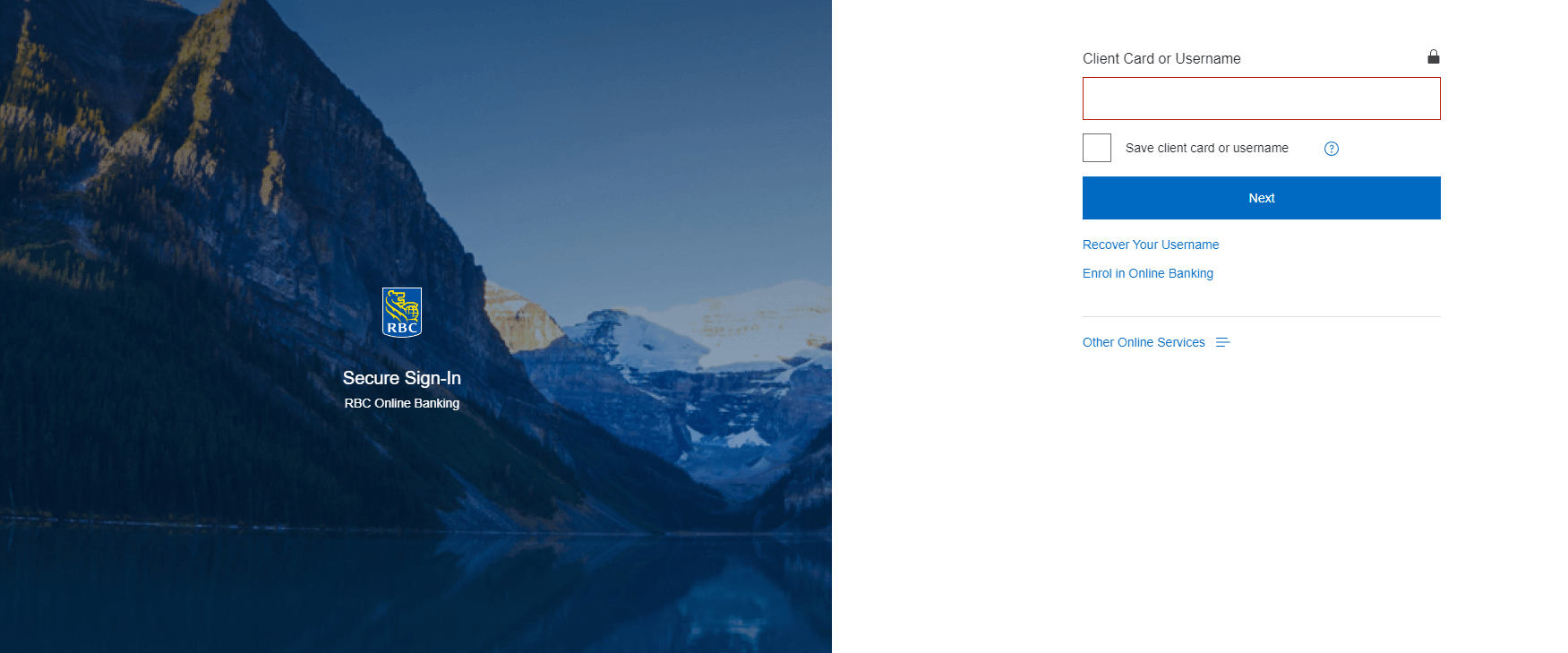
    Follow these steps to cancel an e-Transfer with RBC:

    1. Log in to RBC Online Banking: Visit the RBC website (www.rbcroyalbank.com) and sign in to your online banking account using your client card number or username and password.
    2. Navigate to the e-Transfer section: Once you have logged in, click on the “Pay Bills & Transfer Funds” option in the top menu. Then, select “Interac e-Transfer” from the dropdown menu.
    3. Access e-Transfer history: To view your e-Transfer history, click on the “e-Transfer History” tab. This will display a list of all your past and pending e-Transfers.
    4. Locate the e-Transfer you wish to cancel: Browse through the list of e-Transfers to find the one you want to cancel. Note that you can only cancel an e-Transfer if it has not yet been deposited by the recipient.
    5. Cancel the e-Transfer: Click on the “Cancel” button next to the e-Transfer you want to cancel. A pop-up window will appear, asking you to confirm the cancellation. Click on “Yes” to proceed.
    6. Verify the cancellation: After confirming the cancellation, the status of the e-Transfer will change to “Cancelled.” You should also receive a confirmation email from RBC, notifying you that the e-Transfer has been cancelled.
    7. Refund processing: The funds from the cancelled e-Transfer will be returned to your account. Note that it may take a few minutes to a few hours for the refund to be processed and reflected in your account balance.

    Important Points to Remember

    • You can only cancel an e-Transfer if it has not yet been accepted or deposited by the recipient.
    • A cancellation fee may apply, depending on your account type and the terms of your banking agreement with RBC.
    • If the recipient has already deposited the funds, you will not be able to cancel the e-Transfer. In this case, you will need to contact the recipient directly and request a refund.

    Conclusion

    Cancelling an e-Transfer with RBC is a simple process if you follow the steps outlined in this guide. Always double-check the details before initiating an e-Transfer to avoid the need for cancellation. If you have any questions or concerns, don’t hesitate to reach out to RBC’s customer support for assistance.

    Evan McKenzie

    Evan McKenzie is a contributor at Vaughantoday.ca, covering a wide range of topics including local news, politics, business, technology, sports, entertainment, and lifestyle. He focuses on clear, balanced reporting that helps readers stay informed about current events and issues that matter to their communities. His work aims to provide useful information, timely updates, and relevant stories presented in an accessible and reader-friendly way.

    Share. Facebook Twitter Pinterest LinkedIn Tumblr Email

    Related Posts

    As David Barrick Takes the Helm in Whitehorse, a Close Examination of His Record Tells a Reassuring Story

    October 20, 2026

    Intercultural Education and International Programs with Uri Poliavich

    October 7, 2026

    Hamilton Expands Cycling Network with New Federal Investment

    March 28, 2026
    Top Posts

    Windows 11, Microsoft is improving and improving the start menu

    March 2, 2022719 Views

    Zodiac – Detailed Review of an Online Casino

    October 7, 2021448 Views

    Gambling as a Way to Earn Money

    March 31, 2022411 Views

    How to Pertain Real Estate Appraisal

    April 23, 2022408 Views
    Don't Miss
    Top News

    As David Barrick Takes the Helm in Whitehorse, a Close Examination of His Record Tells a Reassuring Story

    October 20, 202628 Views

    A city manager is rarely the best-known person at city hall. The mayor speaks for…

    Landmark Cinemas Bolton Upgrades to Laser Ultra Ahead of Holiday Movie Season

    October 17, 2026

    CAA Urges Ontario Drivers to Slow Down and Move Over as Roadside Safety Law Expands in 2027

    October 17, 2026

    GTA 6 Development Continues as Rockstar Prepares for November 19 Release

    October 17, 2026
    About Us

    We cover culture, entertainment, travel, food, wellness, and real-life stories from across Vaughan and beyond.

    We’re currently accepting new media partnerships, brand collaborations, and editorial contributions.

    Email: [email protected]

    Contact: +1-416-555-0134

    Our Picks

    As David Barrick Takes the Helm in Whitehorse, a Close Examination of His Record Tells a Reassuring Story

    October 20, 2026

    Landmark Cinemas Bolton Upgrades to Laser Ultra Ahead of Holiday Movie Season

    October 17, 2026

    CAA Urges Ontario Drivers to Slow Down and Move Over as Roadside Safety Law Expands in 2027

    October 17, 2026
    Most Popular

    Russian President Putin congratulates Joe Biden on his election victory

    December 15, 20200 Views

    Biden announces a bill to grant citizenship to illegal immigrants

    January 17, 20210 Views

    A show noticed when Joe Biden was nominated, before a gala evening

    January 22, 20210 Views
    • About Us
    • Contact Us
    • DMCA
    • Editorial Policy
    • Privacy Policy
    © 2026 VaughanToday.ca — Canadian Lifestyle News & Features. All Rights Reserved.

    Type above and press Enter to search. Press Esc to cancel.