

Close Menu
    Facebook X (Twitter) Instagram
    Trending
    • Hauser’s Marks 45 Years With Province-Wide Customer Celebration and Renewed Focus on Community Care
    • Young drivers face elevated collision risks after consuming edible cannabis, new CAA-funded study finds
    • Salvation Army Thrift Store Marks 40th Ontario Location with Peterborough Opening
    • Early Blast of Winter Prompts Safety Warnings from Ontario Road Authorities
    • HONOR Takes Home Two TIME Best Inventions 2025 Awards for Smartphone Breakthroughs
    • Toronto Set to Host Largest LEGO® Fan Event in Canadian History
    • Hank Azaria and Caitlin Morrison Champion Mental Health Through Music at Toronto’s Koerner Hall
    • Bricks in the Six to Build Canada’s Largest-Ever LEGO® Fan Event This November
    Facebook X (Twitter) Instagram YouTube
    Vaughan TodayVaughan Today
    • Home
    • Top News
    • World
    • Banking
    • Explore Canada
    • How to
    • Solutions
    • Contact Form
    Vaughan TodayVaughan Today
    Home»Tech»How to empty your Gmail Trash (+ tips)
    Tech

    How to empty your Gmail Trash (+ tips)

    Jillian CastilloBy Jillian CastilloJanuary 18, 2021No Comments2 Mins Read
    How to empty your Gmail Trash (+ tips)
    Share
    Facebook Twitter LinkedIn Pinterest Email

    A question

    When you delete an email, it is automatically kept in the Trash folder for 30 days. When this period is exceeded, the email is permanently deleted and cannot be recovered later. How to empty Gmail trash and permanently delete all emails placed in the trash?

    Reply

    Empty Gmail Trash using your computer

    On your computer, you can empty your Recycle Bin Gmail By doing the following:

    1. Open Gmail
    2. Click on the “More” tab on the left of the page
    3. Select Recycle Bin
    4. Check all emails that you want to permanently delete
    5. Once done, click ‘Delete permanently’

    Where is the “More” tab?
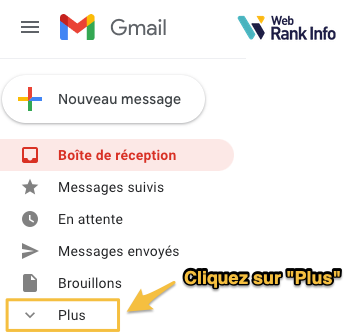
    Tab
    Click on the More tab in Gmail

    Where is the recycle bin?

    Access the Gmail Trash
    How to access the Gmail Recycle Bin?

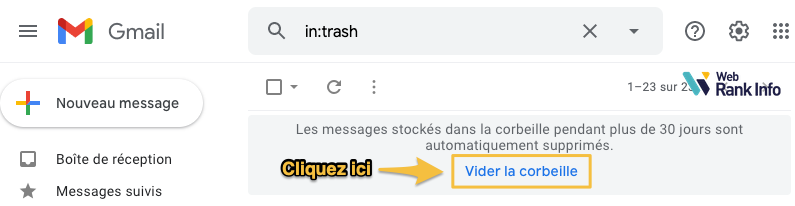
    Where is the link to empty the recycle bin?

    Link to empty the recycle bin
    Link to empty Gmail trash

    If you want to delete all messages in the recycle bin, you can directly click on “Empty Recycle Bin”. This avoids you having to select each email one by one. Note, however, that this permanent delete option is only present in your Recycle Bin.

    See also: How to delete your Gmail?

    Empty Gmail Trash from smartphone

    From your smartphone, do the following to empty Gmail trash:

    1. Open the Gmail app
    2. Click “List” at the top left
    3. Click on “Recycle Bin” then “Empty Recycle Bin.”

    To find out …

    When I empty Gmail trash, can I cancel?

    No ! Once the mail messages are permanently deleted, you cannot recover them. So think carefully before proceeding with this trash removal.

    How to delete all messages in Gmail trash?

    Go to Recycle Bin and click on “Empty Recycle Bin”. This avoids you having to select each email one by one.

    Did you like this tip?

    Share. Facebook Twitter Pinterest LinkedIn WhatsApp Reddit Tumblr Email
    Jillian Castillo

    "Proud thinker. Tv fanatic. Communicator. Evil student. Food junkie. Passionate coffee geek. Award-winning alcohol advocate."

    Related Posts

    MSI Unveils Black Friday Discounts on Flagship Laptops and Handhelds

    November 1, 2025

    Rare Earth Metals: Essential Uses and the Global Supply Chain

    October 4, 2025

    Bell error 2000: Troubleshoot and Solutions

    June 4, 2023
    Facebook X (Twitter) Instagram Pinterest
    © 2025 ThemeSphere. Designed by ThemeSphere.

    Type above and press Enter to search. Press Esc to cancel.