

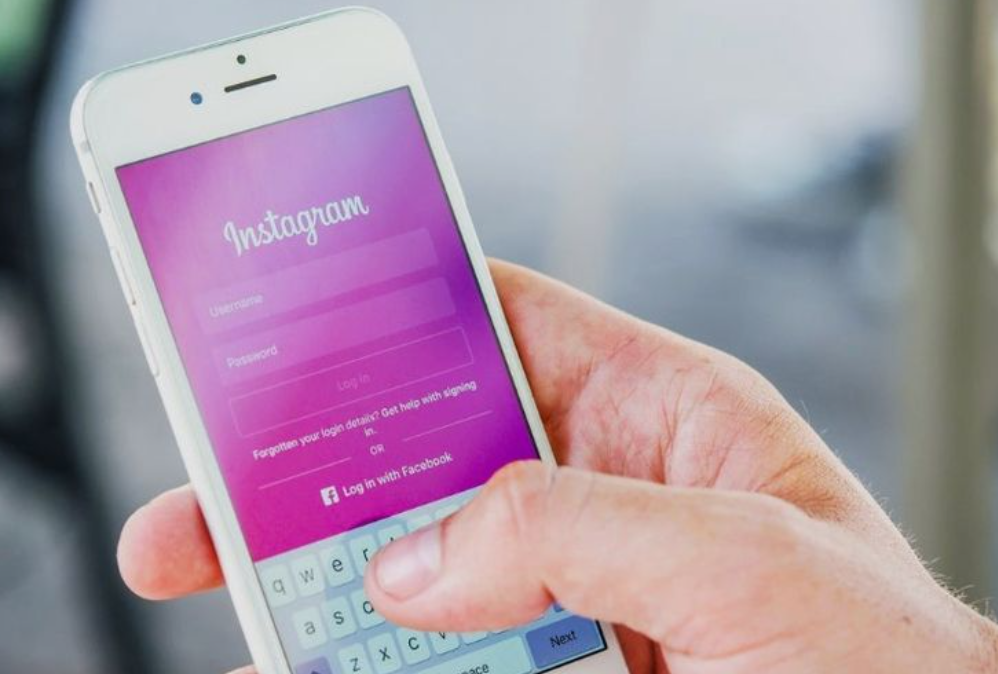
In today’s digital age, Instagram has become an essential platform for social interaction, business promotion, and personal expression. However, like any other software, it isn’t immune to glitches and errors. One issue that some users face is a persistent message saying, “Please wait a few minutes before you try again” when attempting to log in. This article provides a step-by-step guide on how to solve this Instagram login error.
Instagram Login Error
The error message, “Please wait a few minutes before you try again,” typically appears when Instagram’s systems detect unusual activity on your account. This could be due to a variety of reasons like suspicious login attempts, violation of Instagram’s Community Guidelines, or even a bug in the Instagram app.
Basic Troubleshooting Steps
When encountering this error, begin with basic troubleshooting:
Step 1: Wait it Out: As simple as it sounds, giving it some time before attempting to log in again might just solve the issue. Instagram’s systems could be processing your account information due to suspected violations or security concerns.
Step 2: Check Instagram’s Server Status: Occasionally, the error might be due to server issues on Instagram’s end. You can check this by visiting websites like Down Detector or Outage.
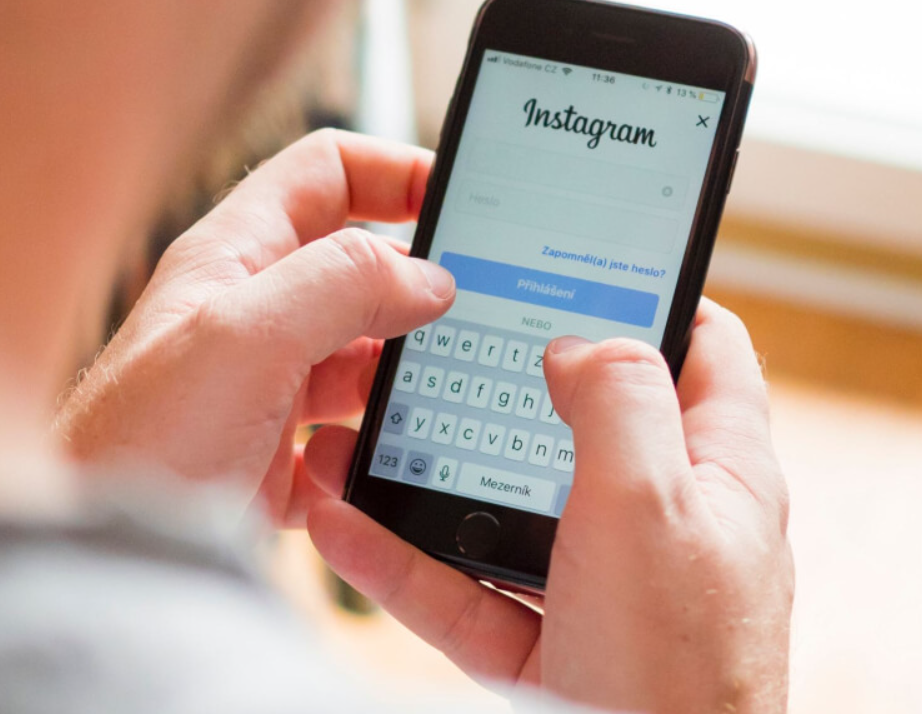
Step 3: Update the Instagram App: An outdated Instagram app might be the cause of the problem. Update your app to the latest version available in the App Store (for iOS devices) or Google Play Store (for Android devices).
Step 4: Restart Your Device: Sometimes, simply restarting your device can fix the issue. Try turning off your device, waiting for a minute, then turning it back on.
If these basic troubleshooting steps don’t resolve the issue, more advanced methods might be needed.
Advanced Troubleshooting Methods
Method 1: Clear the Instagram App Cache: For Android users, clearing the app cache might resolve the issue. This process removes temporary files that could be causing the error. To clear the Instagram app cache:
- Go to ‘Settings’ on your Android device.
- Tap ‘Apps’ or ‘Application Manager’ (this may vary depending on your device).
- Scroll down and tap ‘Instagram’.
- Tap ‘Storage’, then ‘Clear Cache’.
For iOS users, there isn’t a built-in option to clear an app’s cache. However, reinstalling the Instagram app essentially achieves the same result.
Method 2: Change Your Password: The error may occur if Instagram detects suspicious activity on your account. Changing your password can resolve this issue. To change your Instagram password:
- On the Instagram login page, tap ‘Get help signing in’.
- Enter your Instagram account’s email address, then tap ‘Next’.
- Tap ‘Need more help’, then follow the on-screen instructions.
You should receive an email from Instagram with a link to reset your password.
Method 3: Use Instagram’s “Help Us Confirm You Own This Account” feature: If you see a ‘Help Us Confirm You Own This Account’ message, it means Instagram needs more information to verify your account. Follow the on-screen instructions to confirm your account.
Method 4: Report the Problem to Instagram: If none of the above methods work, report the problem to Instagram:
- Open the Instagram app.
- Tap on your profile, then the menu (the three horizontal lines at the top-right corner).
- Tap ‘Settings’, then ‘Help’, then ‘Report a Problem’.
- Follow the on-screen instructions to report your issue.
Remember to provide as much detail as possible to help Instagram resolve the issue.
Preventive Measures
Prevention is always better than cure. Here are some tips to avoid this and other similar issues:
Regularly Update Your Instagram App: Keep your Instagram app up to date. Instagram regularly releases updates to fix bugs and improve the app’s performance.
Secure Your Instagram Account: Protect your account from unauthorized access by using a strong, unique password, enabling two-factor authentication, and being cautious of phishing attempts.
Adhere to Instagram’s Community Guidelines: Violations of Instagram’s guidelines can lead to temporary blocks or other issues with your account. Make sure you’re familiar with these guidelines and adhere to them.
Limit Aggressive Actions: Excessive or aggressive actions, like liking too many photos in a short time, following and unfollowing people rapidly, or posting too many comments at once, can lead to Instagram thinking your account is a bot. Limit such actions to prevent potential issues.
Conclusion
In conclusion, the Instagram login error saying “Please wait a few minutes before you try again” can be frustrating, but it’s often resolvable with some basic troubleshooting or more advanced methods. If the problem persists, don’t hesitate to contact Instagram’s support. They’re there to help resolve issues and ensure you have a seamless Instagram experience. Remember, keeping your app up-to-date, securing your account, and following Instagram’s guidelines can help prevent such problems from arising.

Evan McKenzie is a contributor at Vaughantoday.ca, covering a wide range of topics including local news, politics, business, technology, sports, entertainment, and lifestyle. He focuses on clear, balanced reporting that helps readers stay informed about current events and issues that matter to their communities. His work aims to provide useful information, timely updates, and relevant stories presented in an accessible and reader-friendly way.