

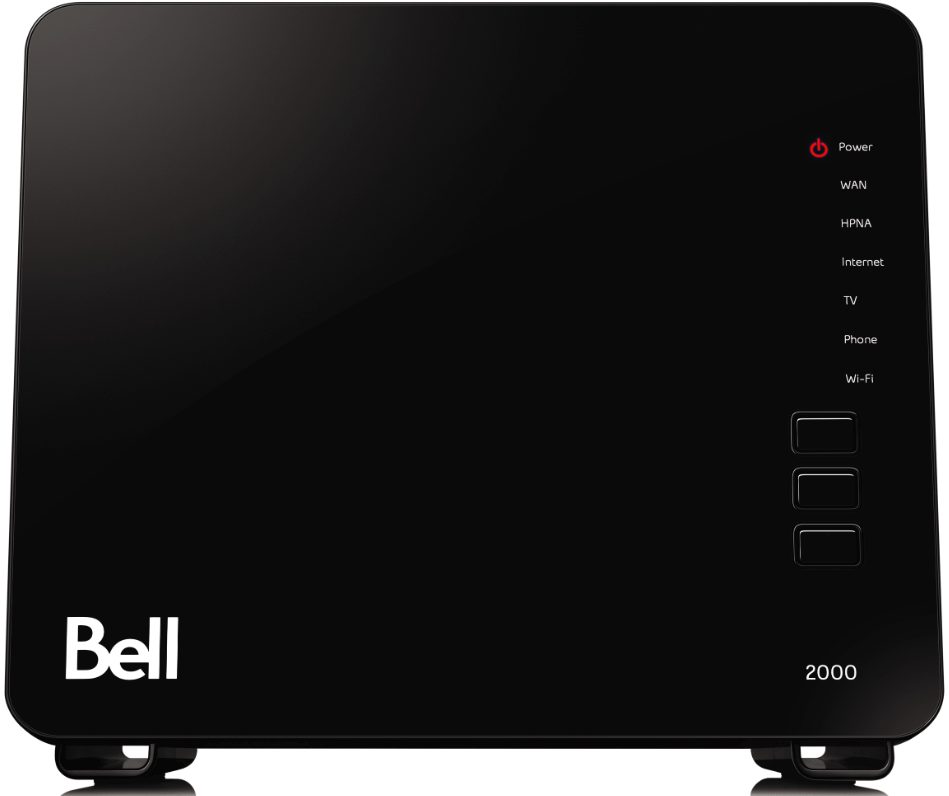
Bell Canada is one of the largest telecommunications companies in Canada, offering a wide array of services including high-speed internet. Many of its users opt to use Bell’s own routers, but like any technology, issues can arise. One error that Bell router users occasionally encounter is Error 2000. In this article, we’ll provide a comprehensive guide to understanding and troubleshooting this error.
What is Bell Router Error 2000?
Error 2000 is a common issue that many Bell router users may come across. This error usually indicates a problem with the connection between your device and the router, often as a result of incorrect network settings, poor signal strength, or a problem with the device’s wireless adapter.
Potential Causes of Bell Error 2000
There are several reasons you might encounter Error 2000 on a Bell router:
- Incorrect Network Settings: Incorrectly configured network settings can prevent your device from connecting to the router, triggering Error 2000.
- Faulty Wireless Adapter: If the wireless adapter of your device is faulty or incompatible with your Bell router, you may experience this error.
- Poor Signal Strength: If your device is too far from the router or there are obstacles blocking the signal, this could lead to poor connection quality and potentially Error 2000.
- Outdated Firmware: In some cases, outdated router firmware can cause connection issues and result in Error 2000.
Troubleshooting Bell Router Error 2000
Now that we’ve covered what Error 2000 is and what can cause it, let’s delve into how to troubleshoot and fix the error:
1. Check Network Settings
The first step is to check your device’s network settings. Ensure that your device is set to automatically obtain an IP address and DNS server address. If your settings were incorrect and you change them to automatic, try connecting to your router again to see if the error has been resolved.
2. Reset Your Router
A quick fix that often works is to reset your router. This will erase any potentially problematic settings and return your router to its default state. To reset your router:
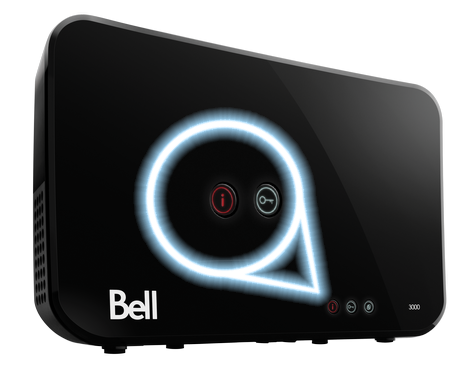
- Locate the reset button (usually at the back of the router).
- Press and hold the button for about 10 seconds (you might need a paperclip or similar object to do this).
- Release the button and wait for the router to reboot.
Remember, resetting your router will erase your current settings, including your Wi-Fi name and password, so you will need to reconfigure these after the reset.
3. Check Your Wireless Adapter
If you’re still experiencing Error 2000, the issue may be with the wireless adapter on your device. Try connecting another device to your router. If other devices connect without issue, the problem is likely with the original device’s wireless adapter. You might need to update the driver for the wireless adapter or, in some cases, replace the adapter altogether.
4. Improve Your Wi-Fi Signal
Poor Wi-Fi signal strength could be the reason behind Error 2000. Ensure your device is within a reasonable range of the router. Remove any physical obstructions between your device and the router, and consider using a Wi-Fi extender to increase the range of your signal.
5. Update Your Router’s Firmware
Bell regularly releases updates to its router firmware to fix bugs and improve performance. If your router’s firmware is outdated, it may cause connection problems. You can typically update your router’s firmware through the router’s admin interface, but you should refer to your specific router’s manual for precise instructions.
Additional Troubleshooting Steps
If the error persists after you’ve tried the above steps, there are a few more solutions you could try:
1. Contact Bell’s Support:
If you’re still encountering Error 2000 after trying these fixes, it might be time to reach out to Bell’s customer support. They can guide you through more specific troubleshooting steps tailored to your particular model of router. In some cases, there might be an issue on Bell’s end that they need to fix.
2. Get a New Router:
In rare cases, if you’ve tried everything and still can’t resolve the error, it might be an issue with the router itself. If your router is old or damaged, purchasing a new router might be the best solution.
3. Use Ethernet Connection:
As a temporary solution, you could try connecting your device to the router using an Ethernet cable. This allows you to bypass any potential wireless issues, but it’s not a permanent solution if you need wireless connectivity.
4. Change Wireless Channels:
If your area is crowded with many wireless networks, they might be interfering with each other. Changing the wireless channel your router uses could help avoid interference and improve your connection. You can change your router’s channel through its admin interface, but be sure to check your router’s manual for precise instructions.

Evan McKenzie is a contributor at Vaughantoday.ca, covering a wide range of topics including local news, politics, business, technology, sports, entertainment, and lifestyle. He focuses on clear, balanced reporting that helps readers stay informed about current events and issues that matter to their communities. His work aims to provide useful information, timely updates, and relevant stories presented in an accessible and reader-friendly way.