



In today’s fast-paced world, electronic fund transfers have become an essential method for conducting transactions. The Royal Bank of Canada (RBC) offers its customers a convenient way to transfer money through e-Transfers. However, there might be instances where you need to cancel an e-Transfer after initiating it. This article will provide you with a detailed, step-by-step guide on how to cancel an e-Transfer with RBC.
What is an e-Transfer?
An e-Transfer is a secure, quick, and convenient way to send, request, or receive money from one bank account to another within Canada. The transaction is usually processed within a few minutes, and the recipient can deposit the funds directly into their bank account.
Reasons for Cancelling an e-Transfer
There could be multiple reasons why you might need to cancel an e-Transfer, such as:
- Sending the funds to the wrong recipient
- Entering the incorrect amount
- Duplicate transactions
- The recipient is unable to accept the transfer
Step-by-Step Guide on how to cancel e transfer rbc
Follow these steps to cancel an e-Transfer with RBC:
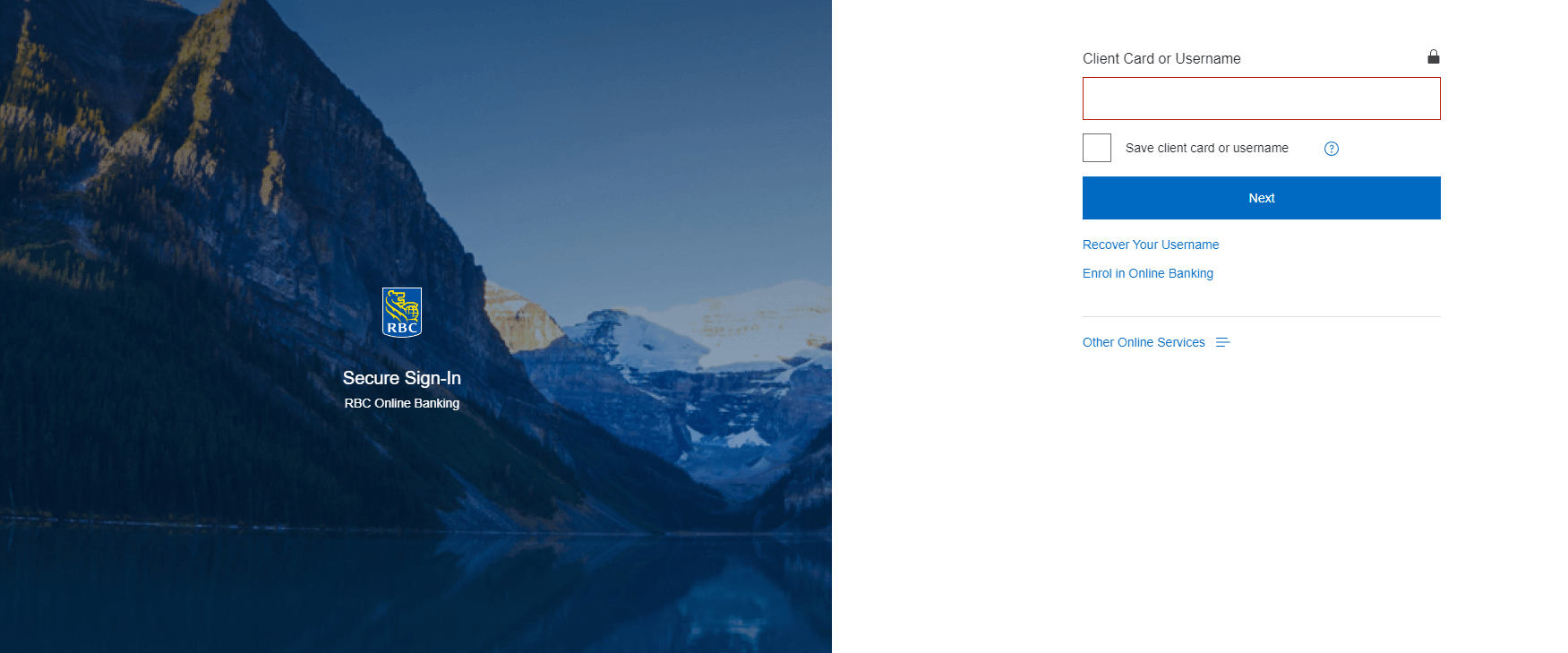
- Log in to RBC Online Banking: Visit the RBC website (www.rbcroyalbank.com) and sign in to your online banking account using your client card number or username and password.
- Navigate to the e-Transfer section: Once you have logged in, click on the “Pay Bills & Transfer Funds” option in the top menu. Then, select “Interac e-Transfer” from the dropdown menu.
- Access e-Transfer history: To view your e-Transfer history, click on the “e-Transfer History” tab. This will display a list of all your past and pending e-Transfers.
- Locate the e-Transfer you wish to cancel: Browse through the list of e-Transfers to find the one you want to cancel. Note that you can only cancel an e-Transfer if it has not yet been deposited by the recipient.
- Cancel the e-Transfer: Click on the “Cancel” button next to the e-Transfer you want to cancel. A pop-up window will appear, asking you to confirm the cancellation. Click on “Yes” to proceed.
- Verify the cancellation: After confirming the cancellation, the status of the e-Transfer will change to “Cancelled.” You should also receive a confirmation email from RBC, notifying you that the e-Transfer has been cancelled.
- Refund processing: The funds from the cancelled e-Transfer will be returned to your account. Note that it may take a few minutes to a few hours for the refund to be processed and reflected in your account balance.
Important Points to Remember
- You can only cancel an e-Transfer if it has not yet been accepted or deposited by the recipient.
- A cancellation fee may apply, depending on your account type and the terms of your banking agreement with RBC.
- If the recipient has already deposited the funds, you will not be able to cancel the e-Transfer. In this case, you will need to contact the recipient directly and request a refund.
Conclusion
Cancelling an e-Transfer with RBC is a simple process if you follow the steps outlined in this guide. Always double-check the details before initiating an e-Transfer to avoid the need for cancellation. If you have any questions or concerns, don’t hesitate to reach out to RBC’s customer support for assistance.
