

Close Menu
    Facebook X (Twitter) Instagram
    Trending
    • Hauser’s Marks 45 Years With Province-Wide Customer Celebration and Renewed Focus on Community Care
    • Young drivers face elevated collision risks after consuming edible cannabis, new CAA-funded study finds
    • Salvation Army Thrift Store Marks 40th Ontario Location with Peterborough Opening
    • Early Blast of Winter Prompts Safety Warnings from Ontario Road Authorities
    • HONOR Takes Home Two TIME Best Inventions 2025 Awards for Smartphone Breakthroughs
    • Toronto Set to Host Largest LEGO® Fan Event in Canadian History
    • Hank Azaria and Caitlin Morrison Champion Mental Health Through Music at Toronto’s Koerner Hall
    • Bricks in the Six to Build Canada’s Largest-Ever LEGO® Fan Event This November
    Facebook X (Twitter) Instagram YouTube
    Vaughan TodayVaughan Today
    • Home
    • Top News
    • World
    • Banking
    • Explore Canada
    • How to
    • Solutions
    • Contact Form
    Vaughan TodayVaughan Today
    Home»Tech»How to enable spatial audio and lossless audio on HomePod and HomePod mini
    Tech

    How to enable spatial audio and lossless audio on HomePod and HomePod mini

    Jillian CastilloBy Jillian CastilloOctober 26, 2021No Comments1 Min Read
    How to enable spatial audio and lossless audio on HomePod and HomePod mini
    Share
    Facebook Twitter LinkedIn Pinterest Email

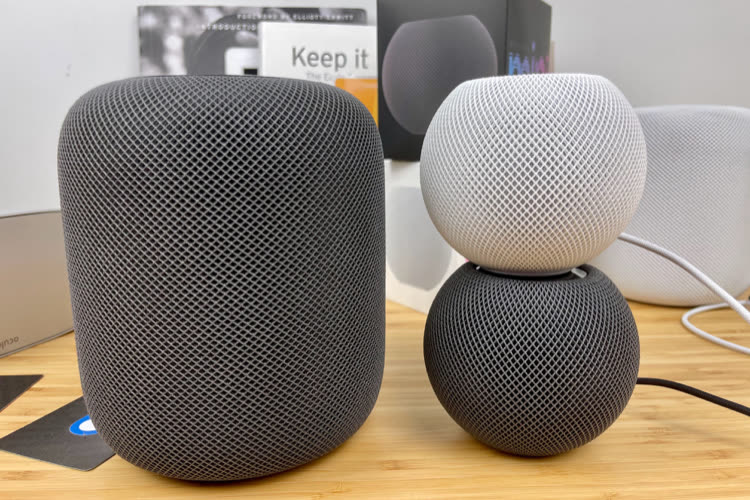
    Since yesterday, it has been possible to play songs in Lossless format or in spatial sound (Dolby Atmos) on the classic HomePod thanks to Update 15.1. To activate all of this, you’ll need to update your HomePods and iPhone (15.1 for both). Then go to the Home app, then to home settings > resident > Apple Music. The buttons must be presented to activate both options as in the screenshot below.

    On the HomePod mini, there is Lossless, but spatial audio is currently excluded. As we can see this summer During the trial periodWith many HomePod minis, we can still get around this limitation.

    Apple doesn’t explain it clearly, but the speakers must be configured as audio output from an Apple TV 4K (1st or 2nd generation). Of course, you will have to start playing the audio from the tvOS Music app. The Dolby Atmos icon will not appear in the Home app if the speakers are not connected to the small box.
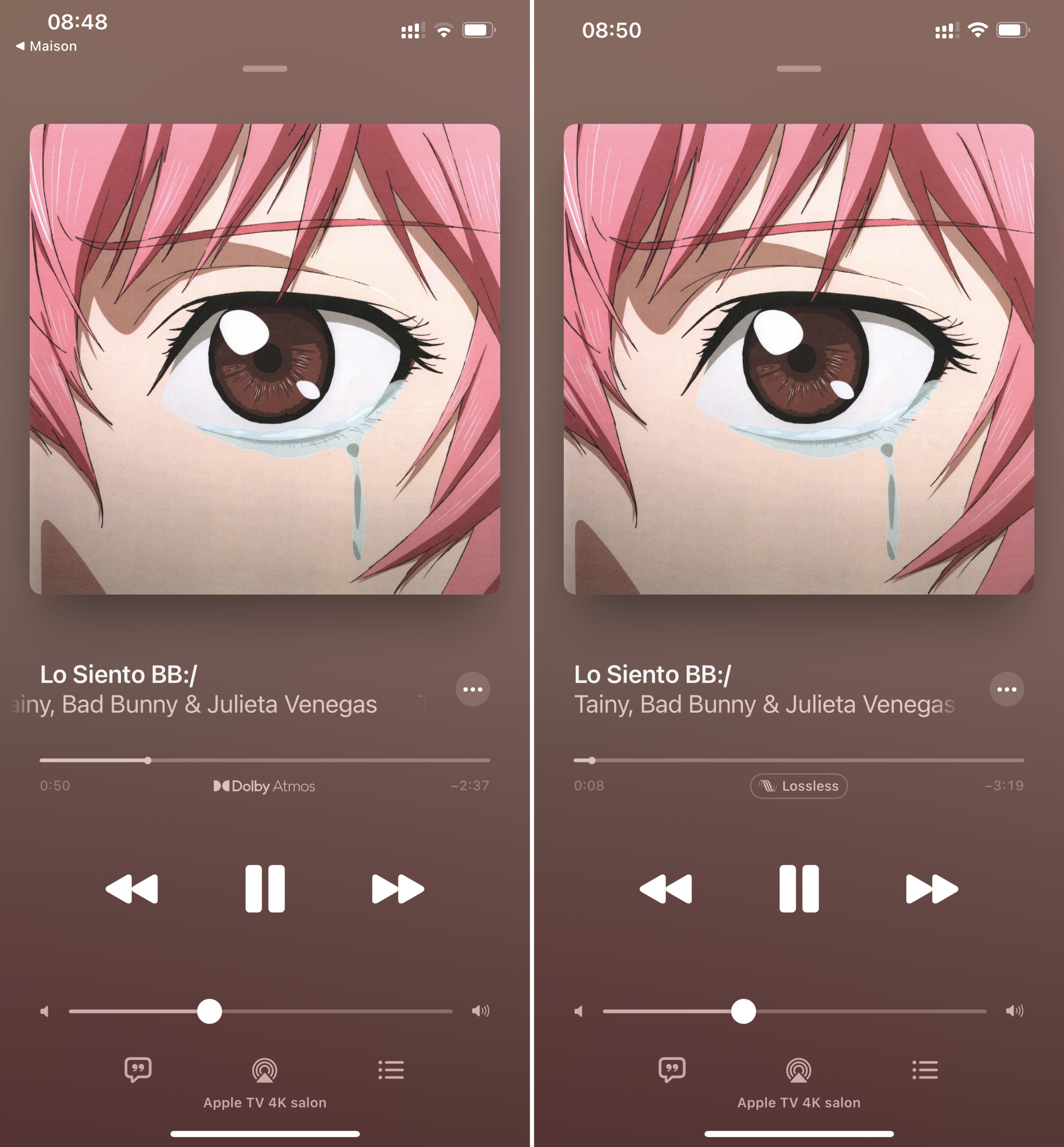

    On an Apple TV 4K with HomePod mini audio out. In tvOS as in iOS, the Music app settings allow you to deactivate Dolby Atmos without data loss.
    Share. Facebook Twitter Pinterest LinkedIn WhatsApp Reddit Tumblr Email
    Jillian Castillo

    "Proud thinker. Tv fanatic. Communicator. Evil student. Food junkie. Passionate coffee geek. Award-winning alcohol advocate."

    Related Posts

    MSI Unveils Black Friday Discounts on Flagship Laptops and Handhelds

    November 1, 2025

    Rare Earth Metals: Essential Uses and the Global Supply Chain

    October 4, 2025

    Bell error 2000: Troubleshoot and Solutions

    June 4, 2023
    Facebook X (Twitter) Instagram Pinterest
    © 2025 ThemeSphere. Designed by ThemeSphere.

    Type above and press Enter to search. Press Esc to cancel.