


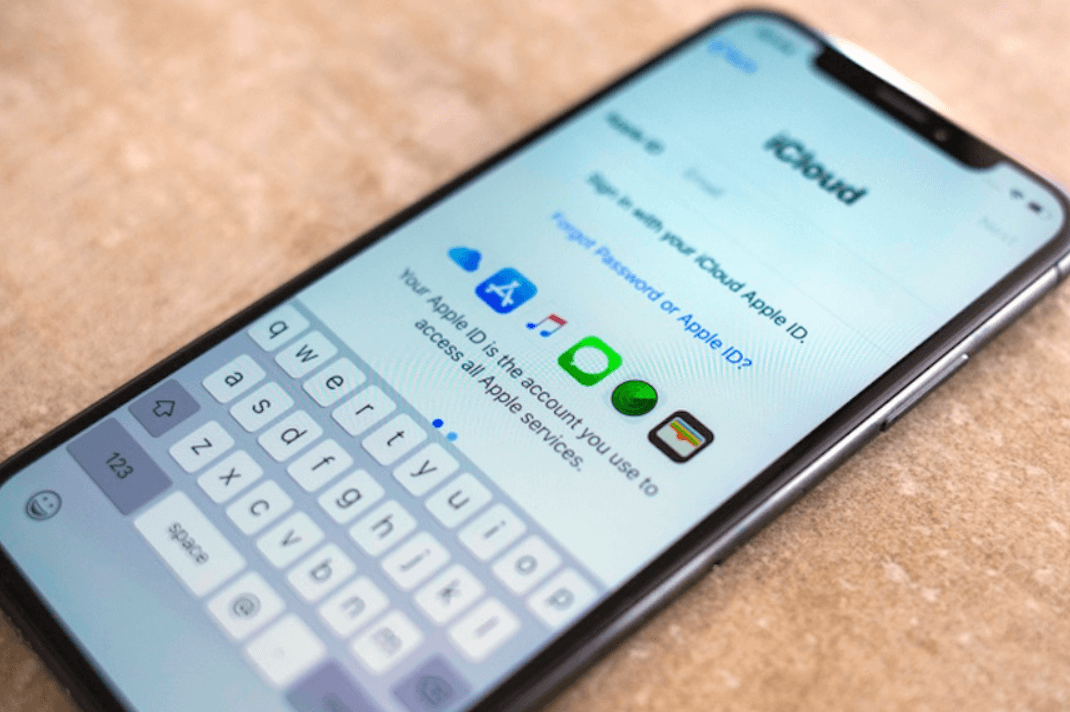
iCloud is a cloud-based service provided by Apple that allows you to store and access your photos, documents, notes, contacts, and much more. Your iCloud account is linked to your Apple ID, and when it works seamlessly, it offers great convenience to Apple users.
However, sometimes you may face trouble signing into your iCloud account on your iPhone. This issue can be caused by several reasons, but with a proper understanding of the potential problems and effective solutions, it can be resolved. Here is a comprehensive guide on how to fix issues related to signing into iCloud on your iPhone.
Can’t sign into icloud on iphone: Steps to Fix
1. Check Your Internet Connection
First and foremost, ensure you have a stable internet connection. iCloud requires internet access to log in and sync your data. You can switch between Wi-Fi and cellular data to see if the problem lies with your internet. Go to ‘Settings’ > ‘Wi-Fi’ or ‘Settings’ > ‘Cellular’ to check and alter your connection.
2. Check Apple’s System Status
Before you dive into more detailed troubleshooting, it’s worth checking whether the issue is from Apple’s end. Visit Apple’s System Status page (https://www.apple.com/support/systemstatus/) to see if iCloud is experiencing any problems. If there’s an outage or issue, you may have to wait until Apple resolves it.
3. Verify Your Apple ID and Password
You could be having trouble signing into your iCloud account because of incorrect login details. Ensure that you’re entering the correct Apple ID and password. If you’ve forgotten your password, you can reset it by visiting Apple’s iForgot site (https://iforgot.apple.com).
4. Update Your iOS
Sometimes, the issue could be with your iPhone’s software. If you’re using an outdated version of iOS, it may interfere with iCloud’s functioning. Go to ‘Settings’ > ‘General’ > ‘Software Update’ to see if an update is available. If so, back up your data and then update your device.
5. Sign Out of iCloud and Sign In Again
If you’re already signed in and experiencing issues, try signing out and then back in again. To do this, go to ‘Settings’ > ‘[Your Name]’ > ‘Sign Out’. You’ll be asked to enter your Apple ID and password. After signing out, restart your iPhone and then sign back in.
6. Reset Your Network Settings
Network issues can sometimes cause problems with iCloud sign-in. Resetting your network settings can often fix these issues. Go to ‘Settings’ > ‘General’ > ‘Reset’ > ‘Reset Network Settings’. This will erase all your current network settings, including Wi-Fi passwords, so make sure you have this information handy before proceeding.
7. Contact Apple Support
If you’ve tried all the steps above and you’re still unable to sign into iCloud, it’s time to contact Apple Support. They have a team of experts who can provide more specific guidance based on the issues you’re experiencing.
8. Two-Factor Authentication
If two-factor authentication is enabled for your Apple ID, ensure that you’re entering the verification code sent to your trusted devices. If you’re not receiving this code, visit Apple’s support site for help with two-factor authentication.
Remember, being unable to sign into your iCloud account can be frustrating, but it’s usually a temporary issue that can be fixed with a little troubleshooting. It’s crucial to keep your device updated and always ensure that you’re entering the correct login details. If you’ve tried all the troubleshooting steps and still can’t sign in, contacting Apple Support is your best bet. Their experts can diagnose the issue and guide you through the process of regaining access to your iCloud account.
9. Verify Your Payment Information
At times, Apple might require you to update or confirm your payment details. This may happen if your credit card has expired, or there is some kind of issue with the card on file. If there are any outstanding balances, these will need to be paid before you can log in to iCloud. You can check your payment information by going to the Apple ID account page and clicking on ‘Payment & Shipping’.
10. Reset All Settings
If you’re still facing problems and you’ve tried all the options above, the next step is a bit drastic but could resolve your issues. Resetting all the settings on your iPhone will not delete any of your apps or personal data, but it will reset system settings including your Wi-Fi passwords, so make sure you have these saved somewhere else. To do this, navigate to ‘Settings’ > ‘General’ > ‘Reset’ > ‘Reset All Settings’. After this, try to sign in to iCloud again.
11. Restore Your iPhone
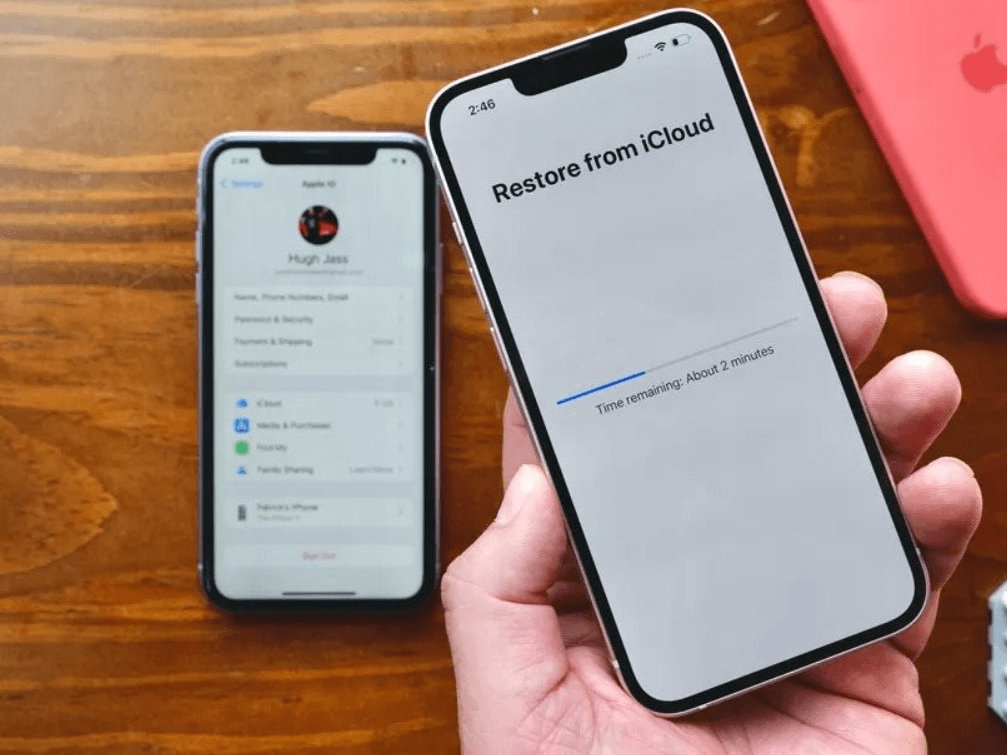
If none of the above steps have worked, and you’re still unable to sign in to iCloud, a more drastic measure may be required – restoring your iPhone. This should only be considered as a last resort, as it will completely erase your iPhone’s data and settings. Ensure that you have a full backup of your iPhone before proceeding with this step. You can do this through iTunes on your computer or via iCloud if you can access it on other devices. Once you’re ready, go to ‘Settings’ > ‘General’ > ‘Reset’ > ‘Erase All Content and Settings’. After your iPhone has been restored to its factory settings, you can restore your data from the backup and try signing into iCloud again.
12. Visit an Apple Store
Finally, if you’re still unable to sign into iCloud and feel you need more direct help, consider visiting your local Apple Store. They can often offer hands-on assistance and potentially resolve the issue faster. Make sure to book an appointment at the Genius Bar in advance to avoid long waiting times.
Conclusion
Signing into iCloud should be a seamless process, but like with any technology, issues can arise. The tips in this guide should help troubleshoot the most common problems. Always remember to keep your login details and iOS software up to date. Stay calm, follow the steps, and you’ll be back accessing your iCloud account in no time.
